
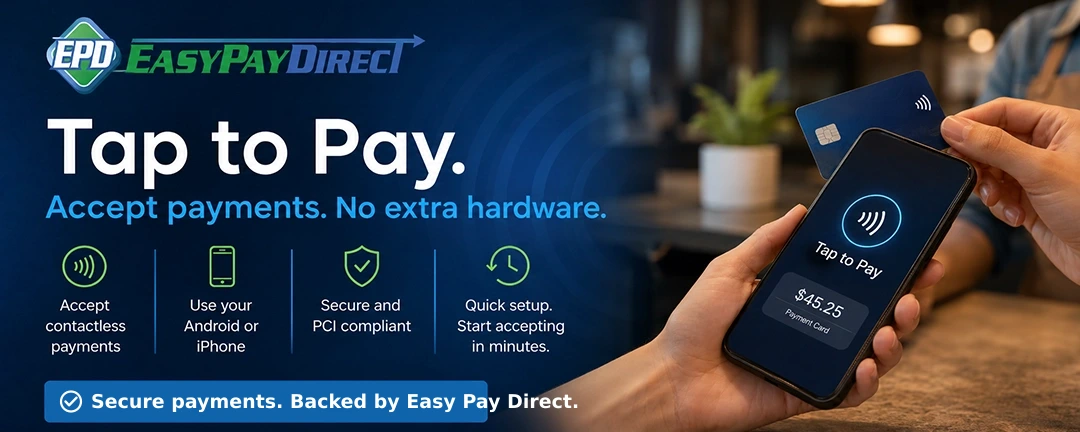
Tap to Pay: Accept Contactless Payments Without Extra Hardware
Easy Pay Direct offers Tap to Pay functionality, giving merchants a simple way to accept secure, contactless payments directly from compatible smartphones without requiring a separate card reader or payment terminal.
Table of Contents
Overview
Tap to Pay allows merchants to accept contactless payments using an NFC-enabled smartphone. Instead of relying on additional hardware, merchants can use a supported Android or iPhone device to take payments in person.
Through Easy Pay Direct’s gateway access, merchants can use Tap to Pay as a flexible payment option for mobile sales, pop-up shops, curbside pickup, delivery, events, retail locations, and other in-person payment environments.
This gives businesses a scalable, cost-effective way to accept payments while keeping transactions connected to their existing merchant account and gateway environment.
Features and Benefits
No Extra Hardware Required
Merchants can accept contactless payments directly on compatible Android or iOS smartphones without purchasing card readers or terminals.
Faster Checkout
Tap to Pay helps speed up in-person transactions and creates a more convenient checkout experience for customers.
Mobile and Flexible
Ideal for businesses that take payments outside of a traditional checkout counter, including mobile businesses, delivery teams, pop-ups, and events.
Secure Payment Acceptance
Tap to Pay supports modern payment security standards, including EMV processing, encryption, PCI DSS requirements, and card network security standards.
Why Merchants Use Tap to Pay
- Lower startup friction: Merchants can begin accepting in-person payments without ordering or waiting for hardware.
- Better mobility: Sales teams, service providers, and event staff can accept payments wherever business happens.
- More checkout options: Customers can pay with contactless cards, digital wallets, and supported mobile payment methods.
- Gateway visibility: Transactions can be managed through the Easy Pay Direct gateway portal.
- Scalable functionality: Merchants can expand into reporting, invoicing, receipts, and other connected payment tools.
Requirements
To use Tap to Pay, merchants need an active merchant account, supported processing setup, Tap to Pay enabled on the gateway account, and active gateway merchant credentials for app login.
- A merchant account with a supported processor
- Tap to Pay enabled on the merchant’s gateway account
- Active gateway merchant credentials
- A compatible NFC-enabled Android or iPhone device
Deployment Option: Cloud Commerce App
The Cloud Commerce App is a ready-to-use mobile app available for Android and iOS. It is a strong option for merchants who want a no-code, out-of-the-box way to start accepting Tap to Pay transactions.
Key Features
- Simple app download and registration using existing gateway credentials
- Supports tipping
- Allows merchants to void or cancel transactions
- Transactions can be managed through the Easy Pay Direct gateway portal
- Useful for mobile businesses, small businesses, events, service providers, and retail environments
How to Enable Tap to Pay
Enable Tap to Pay in the Gateway Portal
- Log in to the Partner Portal.
- Navigate to List Accounts.
- Find the merchant by scrolling through the list or using the search box.
- Click the merchant’s name.
- Scroll to the Value-added Services section.
- Click Update Services.
- Set the status for Tap to Pay to Active.
- Click Submit to save the change.
Download the Cloud Commerce App
- Download Cloud Commerce from the Google Play Store or Apple App Store.
- Launch the app.
- Enter the partner code: CC_8bFEes1a
- Log in using the merchant’s gateway Merchant Portal credentials.
Android Requirements
- Supported processor: TSYS in the United States
- Supported processor: Shift4 in the UK and EU
- Android smartphone or tablet running Android 11 or higher
- Bluetooth should be disabled
- Any connected peripherals should be unplugged
How to Check if an Android Device Has NFC
- Open Settings.
- Go to Connected devices.
- Tap Connection preferences.
- Look for the NFC option. If it appears, the device supports NFC.
How to Enable NFC on Android
- Open Settings.
- Go to Connected devices.
- Select Connection preferences.
- Tap NFC.
- Toggle Use NFC to On.
iOS Requirements
- Supported processor: TSYS in the United States
- Supported processor: First Data Rapid Connect in the United States
- iPhone running iOS 17.4 or higher
- NFC-enabled iPhone
- iPads are not supported
Enabling Tap to Pay on iPhone
After logging in with gateway merchant credentials for the first time, the merchant will be prompted to accept Apple’s Tap to Pay on iPhone Terms and Conditions.
The merchant will also need to sign in with an active Apple ID when prompted. This is required to register the device.
Is Tap to Pay Right for Your Business?
Tap to Pay can be a strong fit for merchants that need a simple, mobile, and hardware-free way to accept in-person payments. It is especially useful for businesses that sell in multiple locations, take payments in the field, or want to reduce their reliance on physical terminals.
Easy Pay Direct can help merchants determine whether Tap to Pay is compatible with their processing setup and business needs.